OBM 1.2
With this application you can issue an email to a preset address by
starting the application and completing the email content.
This way you can place your favorite email address directly on your Springboard.
new 3D design
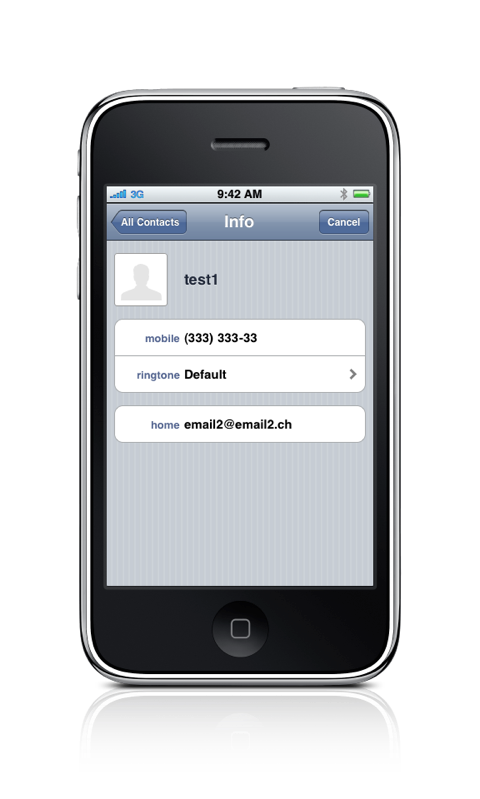
new contact picker to pick the phone email address from your contacts
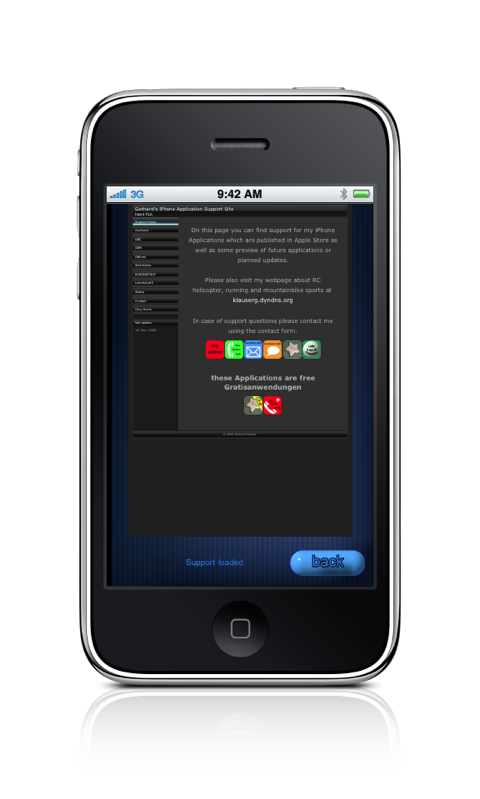
integrated Browser to access the Support Page
Application is tested on OS 3.1.2
available in the App Store

1. Start the 'One Button Mail' application by pressing
the blue icon named 'OBM' on your springboard
2. At the first start click into the email field and enter your preferred email adders
or use the add contact button.
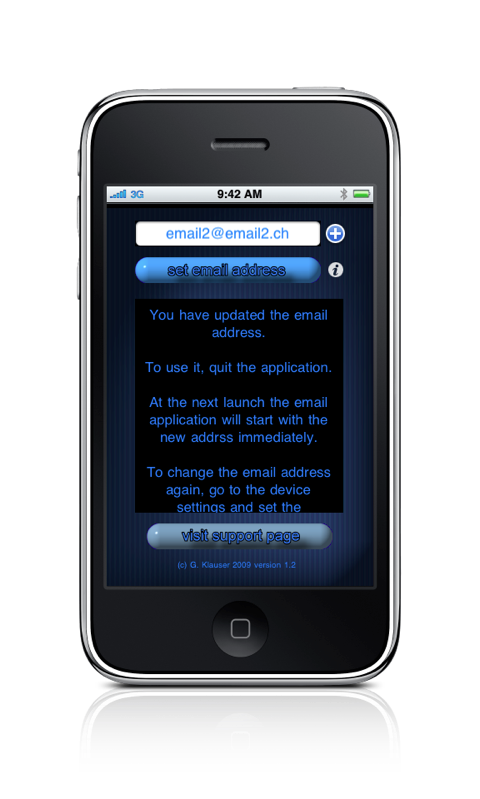
After you have entered the email adderss press the 'set email address' button
and exit the application by pressing the 'Home' button.
After inital entry the email adderss can only be changed
using your phones 'Settings Dialog' (see below 4.) !!!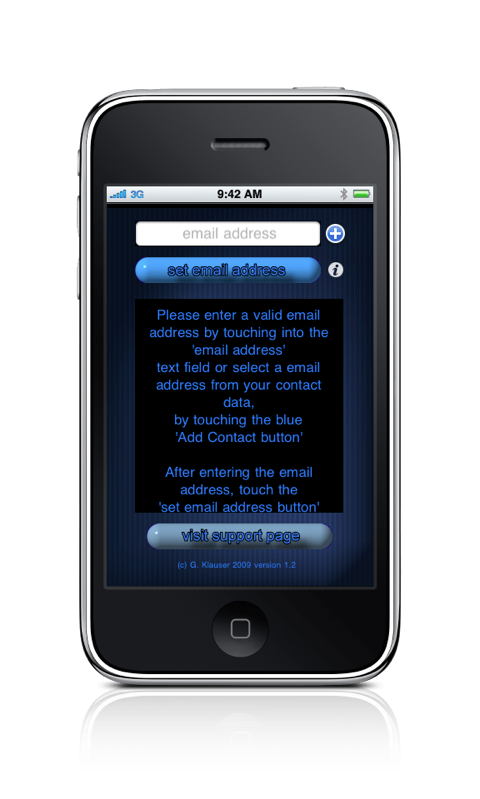
3. At the next launch the application will immediately
start the email client, you can enter your text
and send the email.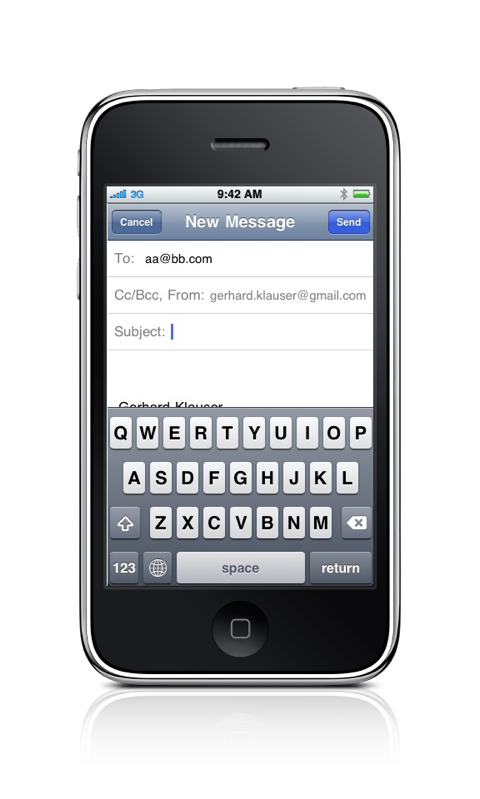
4. To change the email address once you have entered it
you have to open the phones 'Setting Dialog'.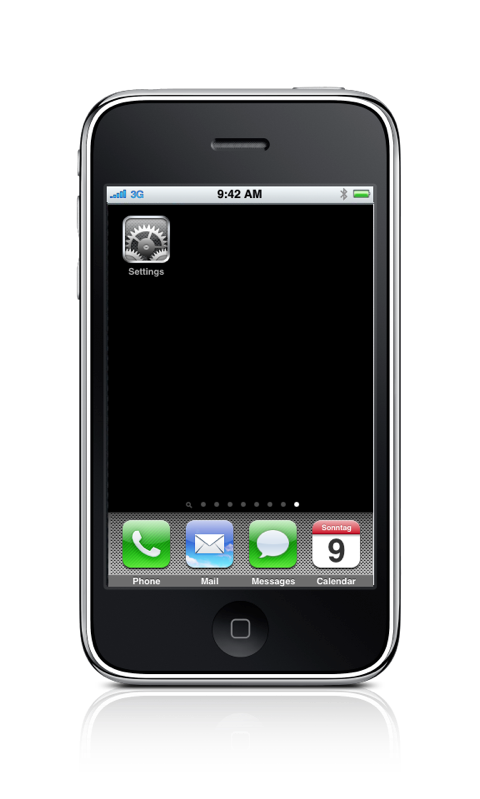
5. Select the 'OBM Settings Icon'
from the list of settings.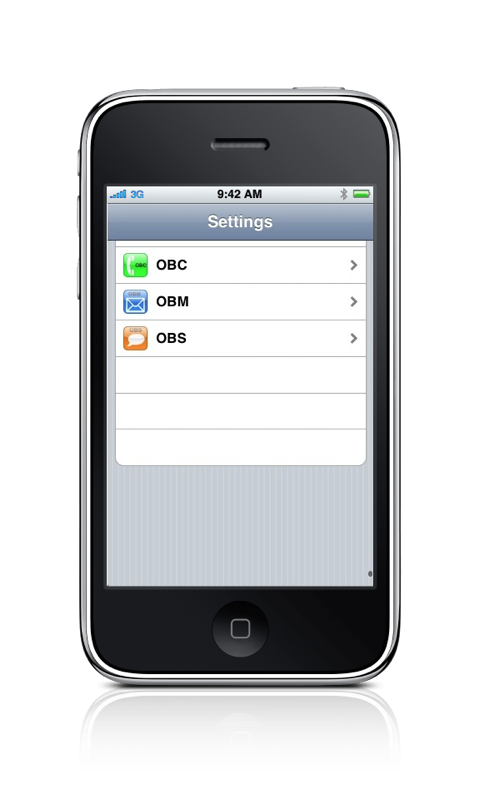
6. Switch the 'Reset' button from 'OFF' to 'ON'.
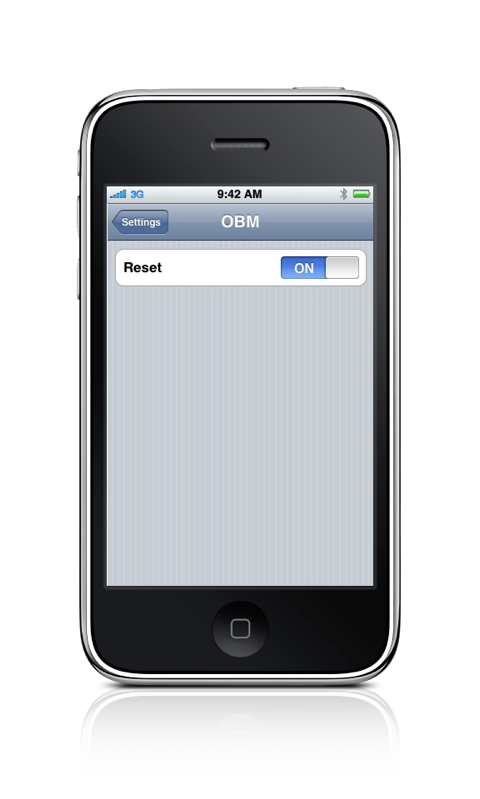
7. At the next launch of the application you will
see the dialog to change the email address
(see 2. above).
8. More information is available on the info page.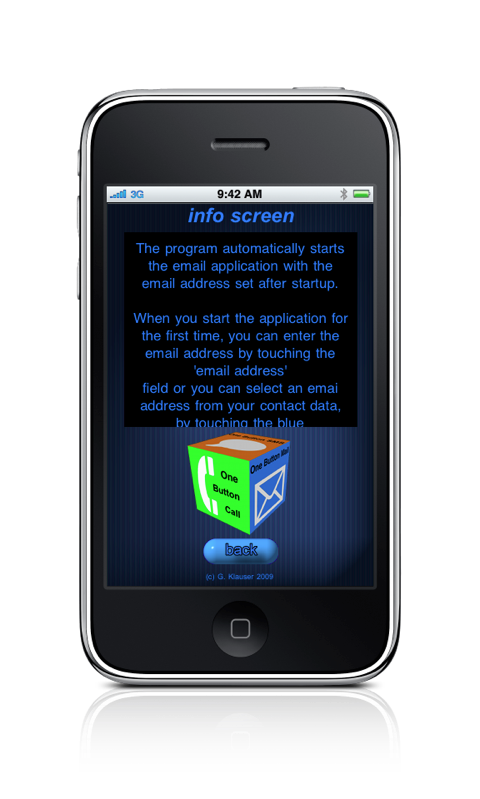
9. Also there is a built in Webbrowser to access this page